
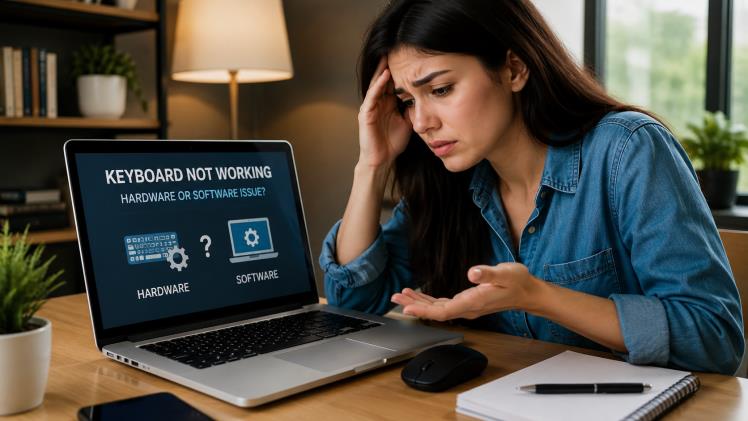
 Your laptop keyboard may stop operating because of many reasons, including a Windows bug, a misconfiguration, or a driver problem. It can be due to a liquid spill too. It is also possible that your laptop may have suffered from some sort of internal malfunction, like motherboard failure, keyboard malfunction, etc. You should not replace your laptop keyboard hastily. Please make sure to first check if your laptop keyboard works when Windows is not booted.
Check Whether the Problem Affects All Keys
Begin with identifying what the problem is regarding the keyboard. For instance, in case your keyboard is not responding at all, this could be a driver issue, an internal connection failure, or even a broken keyboard. However, in the event that some keys on the keyboard are not functioning properly, then it may likely be a case of dirt or debris in and around those keys that has affected their functioning.
If the letters you press don’t show up correctly, your keyboard isn’t broken. First check the language and layout settings. Next, make sure Num Lock is turned on, and that no function-key mode has been activated (according to your operating system). Even if it seems like your keyboard is malfunctioning, it might just be a configuration issue.
To begin, make sure you have restarted your laptop, if you haven’t done so already. The company advises re-booting the laptop along with disconnecting any unrelated external devices that may cause the keyboard not to work.
Test the Keyboard Outside Windows
An excellent method to determine whether or not you are having a hardware error or software problem is to use the keyboard when Windows is not starting properly. One can access the BIOS or UEFI setup and use the arrow, enter and function keys.
If you can’t use the keyboard in the BIOS or the OEM preboot diagnostics, the problem is probably with the keyboard, an internal connection, or the motherboard, not Windows.
If they’re working correctly before entering Windows and then stop functioning afterwards, consider checking drivers and updates, accessibility options, and programs. To troubleshoot your keyboard without contacting Dell technical support, verify whether the keyboard works outside of the operating environment and run a diagnostic test.
Check Windows Settings
There are multiple features of Windows that change the behavior of keyboard input. Navigate to Settings > Accessibility > Keyboard and make sure that none of the accessibility functions (such as Filter Keys, Sticky Keys, etc.) are enabled by mistake. Filter Keys specifically can ignore fast or short keystrokes, resulting in the keyboard feeling slow or erratic.
Make sure that the settings of your keyboard language and configuration are accurate. If the letters are coming out as numbers or some other weird character, it is probably not a fault, but that the Num Lock function is switched on or that the incorrect language is being used.
If you can’t access the keyboard of your computer, please head to Settings > Accessibility > Keyboard, and select On-Screen Keyboard in order to use the keyboard for this test.
When the Keyboard Needs Replacement
In case the keyboard fails to function during either a BIOS or hardware test, in case there are signs of liquid or physical damage, or in the event of driver or firmware updating, it is recommended to replace the keyboard instead of repairing it. In most cases, it is cheaper to replace the keyboard than repairing each switch that may have malfunctioned.
Before placing an order, make sure to verify the exact model number of the laptop, the part number of the keyboard, the language type of the keyboard, the correct side the keyboard cable connects to, the kind of frame of the keyboard and if the keyboard is illuminated or not. Some keyboards, although appearing to be similar in the image, may differ in their key-layout, cable, screws, or whether or not they have illumination. In ZETO.UA, laptop keyboards can be selected based on the laptop model, keyboard part number and layout of keyboard, type of connector for keyboards used and existence of backlight apart from keyboard design. First of all, Windows input settings may have to be checked in Microsoft assistance in order to be sure whether standard settings have to be changed or not. If so, this would also mean that replacement is necessary for a keyboard without taking risk of buying for the correct series but not for correct laptop.
Reinstall the Keyboard Driver
If you have a faulty or incompatible driver, the keyboard can be unplugged and will stop working after Windows is updated.
Go to Device Manager, expand the section labeled “Keyboards,” perform a right-click on the built-in keyboard of your system, and select the option “Uninstall device.” Afterward, reboot the system so that Windows detects the installed keyboard and installs the appropriate driver for it automatically.
Check the specific laptop’s support page and Windows Update to identify the most relevant update. Keyboard issues that are present in certain laptop models can be resolved with the manufacturer driver, BIOS update, or keyboard firmware update instead of the Windows driver. As an example, Dell has identified specific laptop models that can be fixed by using newer firmware. You should only use Windows Update drivers and firmware from the official support pages of the laptop’s manufacturer.
Look for Signs of Physical Damage
If your keyboard has stopped working due to a spill, a drop, repair work, or significant force applied to the case, your hardware has a high possibility of experiencing a hardware failure. You may experience other symptoms, including:
- occurrence of two or more adjacent keys which may fail together;
- keys that only worked when pressed forcefully
- repeated characters from a single press;
- unattached, tacky, or physically compromised keycaps;
- Keyboard intermittently working when laptop was shifted.
Switch the laptop off and clean it. You are able to use dust removers for the dirt around the keys, but do not apply the solution onto the keys of the keyboard. If some liquid goes inside the laptop when it’s still turned on, corrosion can occur resulting in further damage.
If the keyboard fails to work only when it is opened, it is possible that the ribbon cable that connects it to the motherboard has been dislodged or damaged – it is quite difficult to assess without opening the laptop casing to some extent, and a technician will normally be better able to do this as opposed to making the judgment before Lenovo has officially ruled that your keyboard is replaceable – (as would be the case with some models).
Use an External Keyboard as a Comparison
Attach a functional USB keyboard to system. If external keyboard working properly, problem lies within the computer’s hardware devices- the internal keyboard. Internal keyboard works properly under built mode while the external keyboard could be working, even though it’s not detected by Windows OS through the input devices driver.
Simply because that is the case, does not mean that we can assume that the built-in keyboard actually has a hardware failure. It is possible that there is an issue with the particular model driver or firmware impacting the internal keyboard. Thus, the BIOS test and manufacturer diagnostics will always be the best way to separate hardware problems from software problems.
If you are unable to use both the internal and external keyboard, verify that Windows is not frozen and also investigate any issues with the USB ports. Microsoft recommends testing the non-functioning input device on a different computer in order to determine if there are any defects.
Hardware or Software: The Final Check
In case your keys function normally during BIOS but exhibit problems after updating the driver(s) or changing any Windows settings, or if they are working fine after driver reinstallation, it is likely that the problem is software-based. However, if your keys do not work before Windows starts, or your laptop has suffered some physical damage (either by dropping it or spilling liquid on it), or if the diagnosis indicates a hardware issue with your input device, then there may be a serious problem with the hardware as the cause.
In the given sequence; reboot your laptop, modify the configuration and language settings, attempt to input BIOS data, reinstall the driver for keyboard, check for any updates from the manufacturer, and run all diagnostic utilities.